
Manage Space connectors
Connectors bring shared external sources and AI providers into a space and control their synchronization.
Space connectors bring shared data sources, communication services, and configured AI providers into a space. Available choices depend on the product profile and deployment. Owners and Admins manage connections from the Space panel. An Editor can also share an eligible personal connector into the current space, but cannot use the space-only administration controls. A provider appears only when its capability is enabled for space scope.
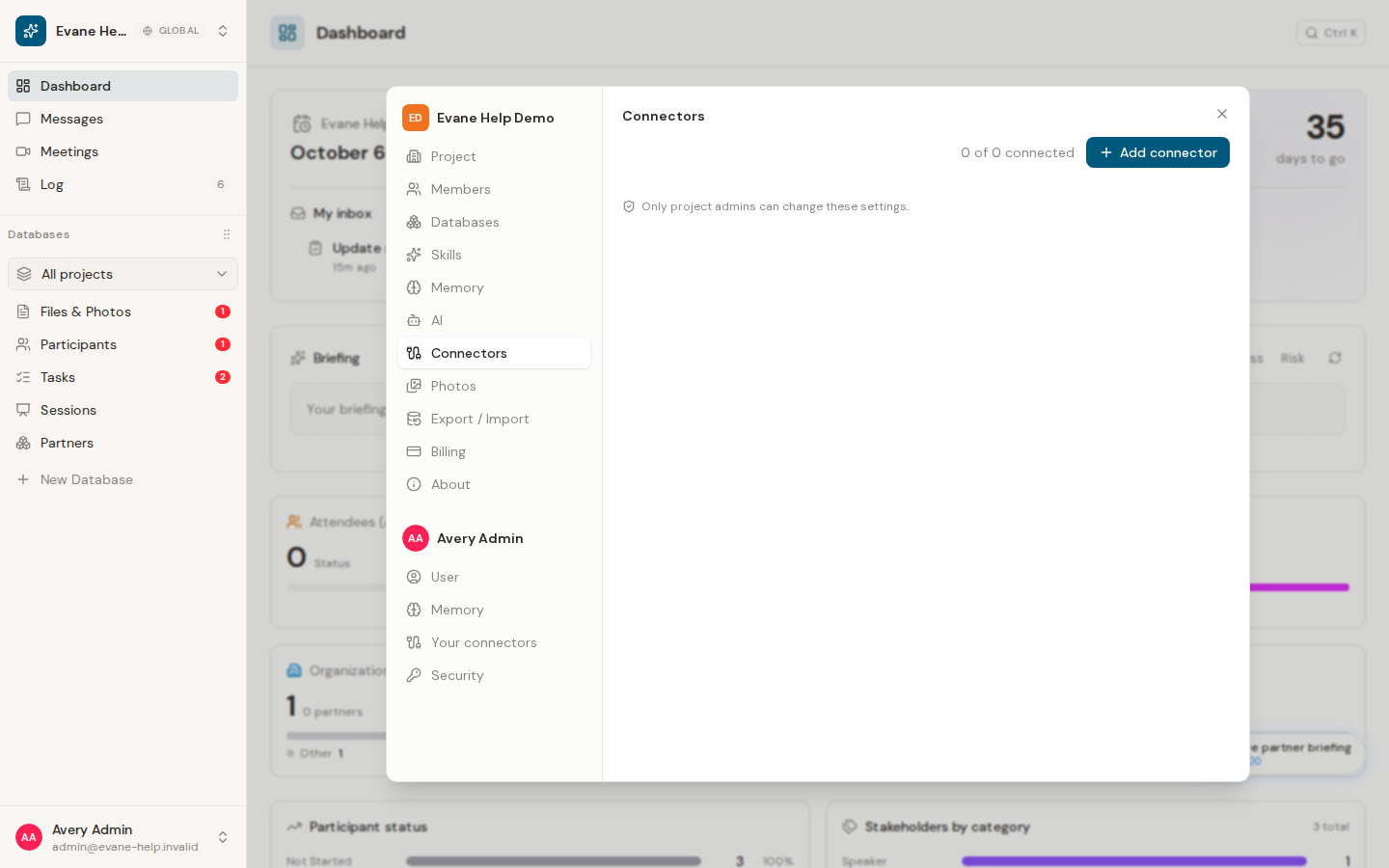
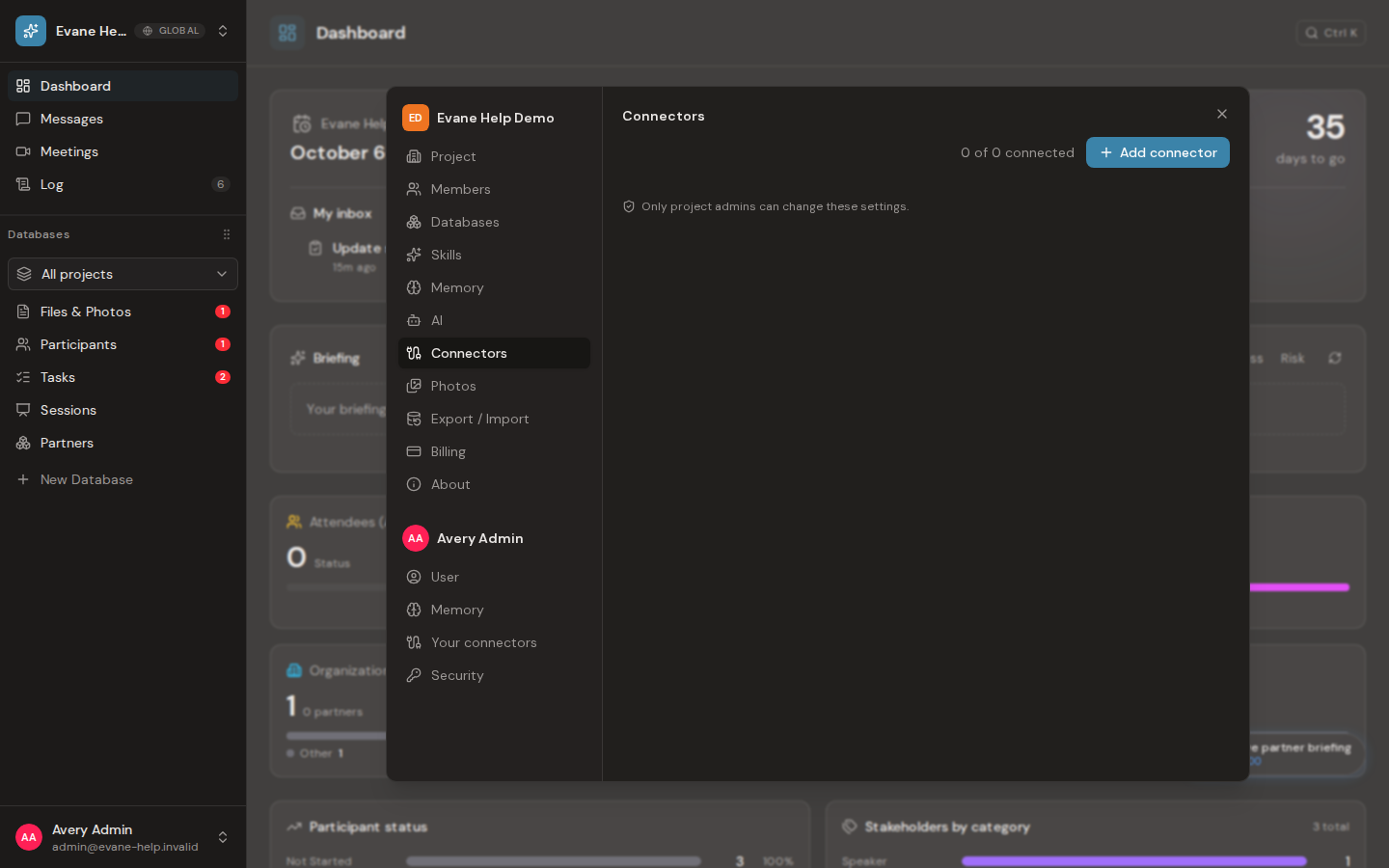
Connect or refresh a source
Open Settings > Connectors and choose an available provider. The setup follows that connector's capability: some providers use OAuth or admin consent, Google Space and Lark also ask for one Drive folder, Dropbox asks for a shared folder link instead of any sign-in, and API-based services or the space AI provider can require configuration values or an API key.
Use Sync now only when the connected card offers it. Pull-based sources such as SharePoint, Google Space, Lark, Dropbox, and Airtable can show sync progress, while live-access or externally managed connectors have no scheduled pull. Disconnect is reversible: the connection and its files stay, but the files are hidden from Files and search and nothing syncs until you select Reconnect. Remove connector is permanent: after you confirm, the connector's drive files go to the trash (restorable for 30 days) and the connection is removed. Neither deletes anything in the external source. A connection that breaks on its own (an expired sign-in, a provider outage) keeps its files visible and, where a copy was kept, downloadable.
An active sync can be paused at a safe checkpoint and resumed later from saved progress. The connected card can also show whether its Skill binding is enabled; turning that binding off stops the linked Skill automation without deleting the underlying connector.
Airtable connections sync exactly the bases the connection was granted on Airtable's consent screen (Airtable grants access per base). To add or remove a base, open the connection's menu and choose reconnect/repair, then adjust the base selection on Airtable's screen. There is no base picker inside Settings, and the granted set is re-read on every successful check.
Dropbox connects without any Dropbox sign-in: paste a shared folder link (one where anyone with the link can view) and Formist reads it with its own Dropbox app. The folder and its files then sync into the space read-only; Formist never writes back to Dropbox. To point the connection at a different folder, remove it and add Dropbox again with the new link. If the link has a password, enter it in the optional password field. Before anything is connected, Formist checks the link and shows the folder's name, how many files and folders it holds, its size and when it last changed. You can also rename the drive there. A link limited to a team, or one that has expired, cannot be connected; Formist says so next to the field instead. After you connect, the first sync's progress stays on screen until it finishes, with a button that opens the new drive in Files & Photos. Connectors you sign in to (Microsoft 365, Google Space, Lark, Airtable, a Dropbox account) first show the same page: the access mode (read-only; Airtable can also sync both ways) and the exact permissions the sign-in will ask for, then Connect takes you to the provider. Dropbox appears as two choices: Dropbox shared link (paste a link, no sign-in) and, where offered, Dropbox account (sign in, then choose folders). Where a space is offered Microsoft 365 operated by 21Vianet, the Microsoft 365 page also asks which Microsoft cloud to sign in to: Microsoft 365 or Microsoft 365 China (21Vianet). The China cloud connects SharePoint sites only, not mailboxes.
Read files on demand
For SharePoint, Google Space, Lark, and Dropbox connections, turn on Read files on demand when a space has many files; it reduces AI token use. With it on, sync keeps only each file's name, size, created and modified dates, and link. A file's content is fetched and converted the first time a member or the AI opens it, then kept for later use. SharePoint offers the option on its connect step, before the first sync starts. The other three drive types offer it afterward, from the connection's menu. Turning it off later means the next sync processes every file it has not yet read, at the same cost as a normal first sync for those files. Before it switches off, Formist asks you to confirm and shows how many files are still unread.
Connect a space AI provider
Owner and Admin roles can choose an AI provider tile and configure the space account. Select the provider and, when offered, its API type and region. Enter the API key plus the fields required by that provider, such as endpoint, deployment, API version, base model, or base URL. Use the connection test before saving; a successful probe can return the models available to that credential.
The API key is submitted as a secret and is not shown again in the connection response. Changing an existing endpoint requires the key to be entered again in the same update. A provider can be listed by the deployment but still fail its probe when the endpoint, deployment, region, API version, key, or upstream account is unavailable.
Review SharePoint changes with AI
For SharePoint, open the connection menu and choose Configure AI review. When Review synced changes with AI is enabled and the deployment allows this feature, Formist compares supported content after a successful sync. The first review records a baseline and intentionally creates no Proposal. Later added or changed content can produce an AI-authored Proposal for an eligible reviewer; unchanged, unsupported, or unverified content does not create one. A successful sync therefore does not by itself guarantee a Proposal. AI review is not available while Read files on demand is on for that connection, since it needs each file downloaded to compare, which is exactly what Read files on demand defers; turn the option off to use AI review again.
Space connectors and personal connectors are different scopes. Files synchronized by a space connector are readable to members inside that space. A member may still need personal Microsoft authorization to open the original SharePoint page, send mail, or use another user-owned capability. See Manage personal connectors and MCP access for user-owned grants.
A missing provider option is different from a disconnected account. Ask the deployment administrator to check provider configuration before repeatedly reconnecting.
Frequently asked questions
Does Disconnect delete the connector's synced files?
No. Disconnect is reversible: the connection and its files stay, but files are hidden from Files and search until you Reconnect.
Does a successful SharePoint sync always create an AI Proposal?
No. The first review only records a baseline; only later added or changed, verifiable content can produce a Proposal, so a successful sync does not by itself guarantee one.
Last verified: