
Share files in messages
Formist does not currently add native file attachments to outgoing messages; share an accessible link in the message body instead.
Formist's current message composer does not expose a native attachment picker. To share a document, add a link that the recipient is allowed to open in the message body.
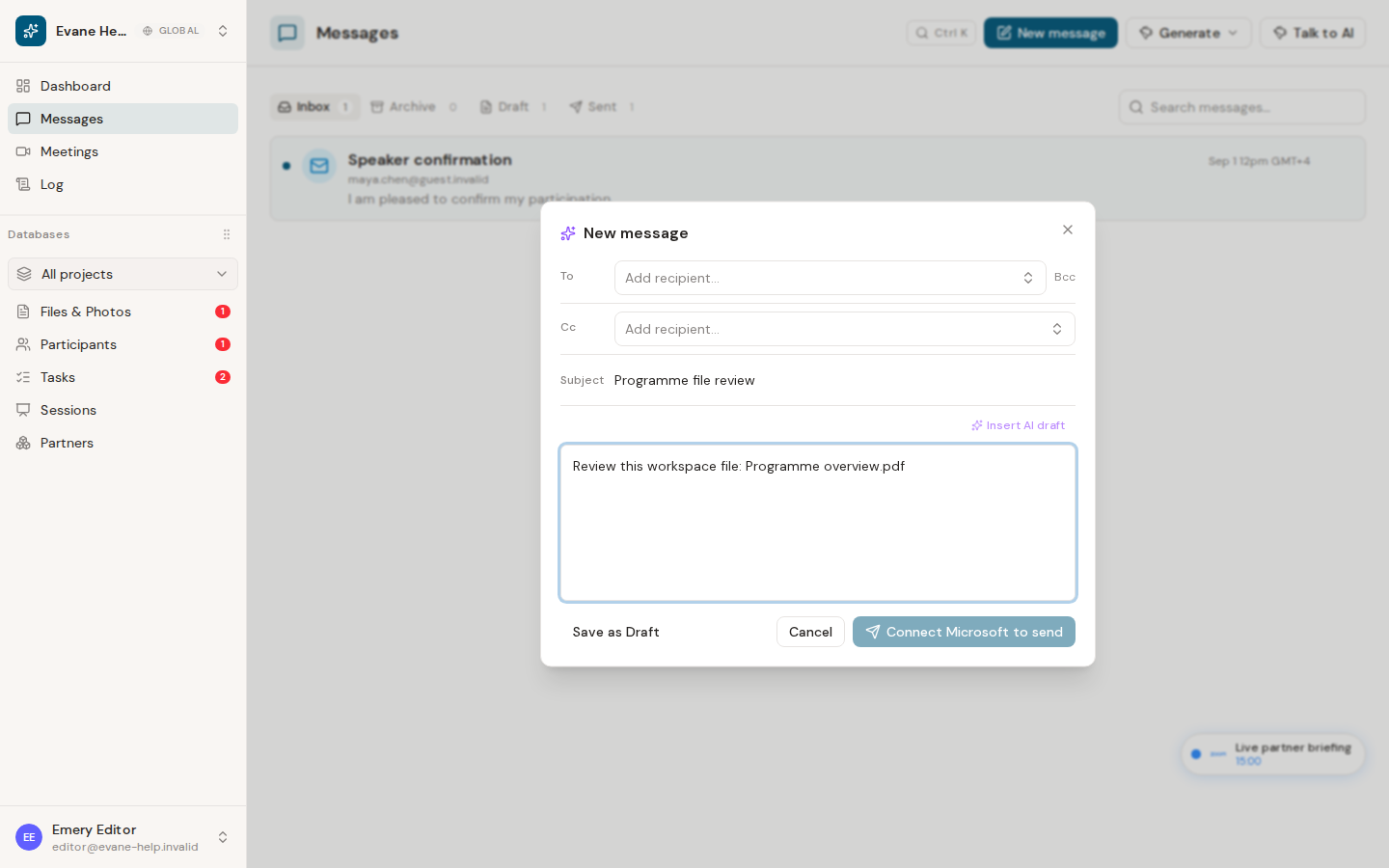
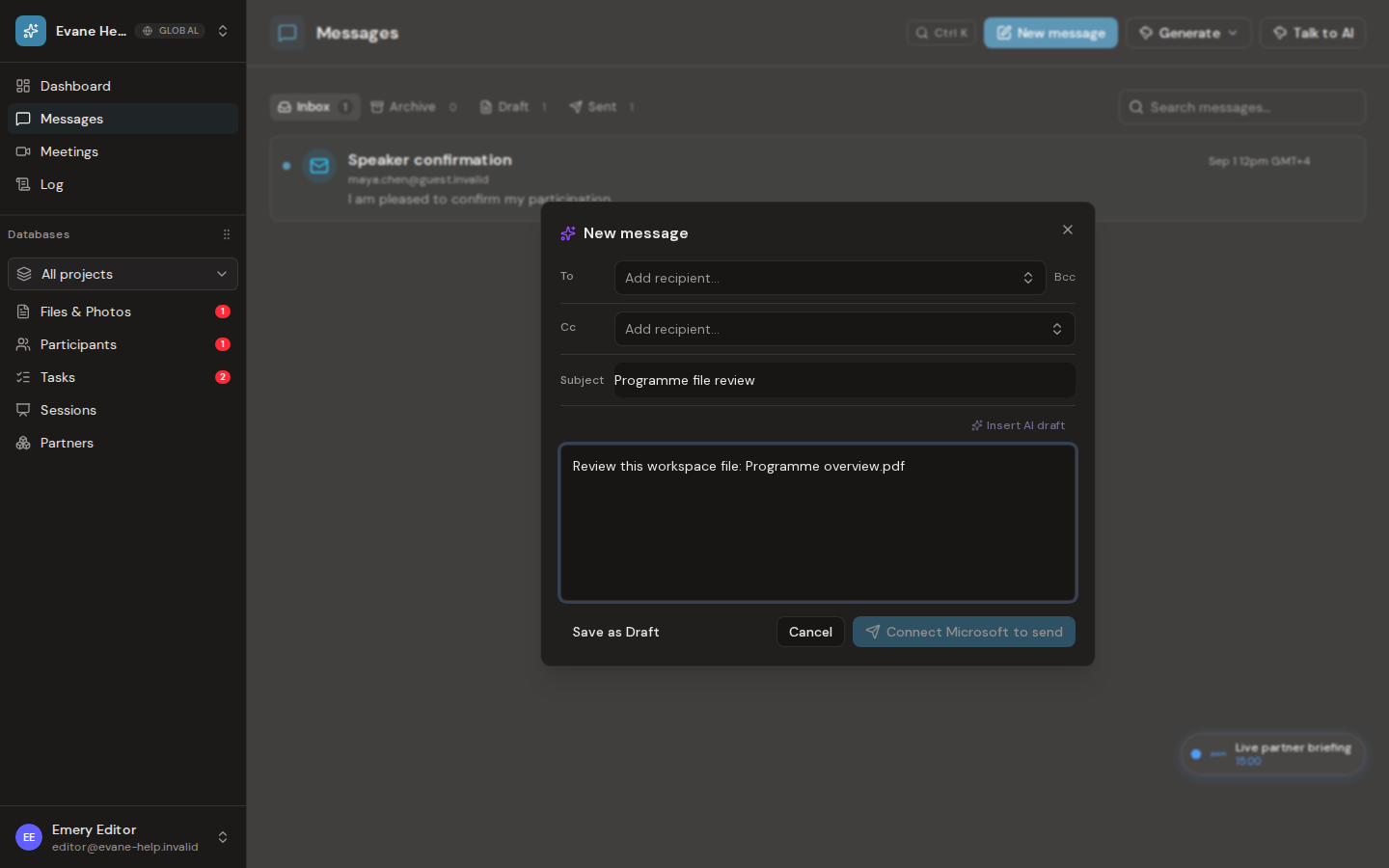
Share a file link
- Open Files and locate the document.
- For a SharePoint file, open it and copy a SharePoint link that is appropriate for the intended recipients. For an Formist-managed file, first download it and share it through an approved external channel.
- Open a new message, draft, reply, or forward composer.
- Paste the accessible link into the message body, then save or send the message.
The message record stores its recipients, subject, body, and HTML body, but it does not store file attachment identifiers. Selecting a space file in the AI assistant is a separate AI-chat feature and does not attach that file to an outgoing email.
Before sending, confirm that external recipients have permission to open the link. A link that works for you may still require the recipient to sign in or request access.
Frequently asked questions
Can I attach an Formist-managed file directly to an email?
Not today. Download the Formist-managed file first, then share it through an approved external channel, or paste an accessible link in the message body.
Does selecting a file in the AI assistant attach it to my email?
No. Selecting a space file in the AI assistant is a separate AI-chat feature and does not attach that file to an outgoing email.
Last verified: