
Troubleshoot SharePoint connection and sync
A SharePoint connection has two separate parts: Microsoft authorization and Formist synchronization.
A SharePoint connection has two separate parts: Microsoft authorization and Formist synchronization. A successful OAuth sign-in does not guarantee that the selected site and files can be synchronized.
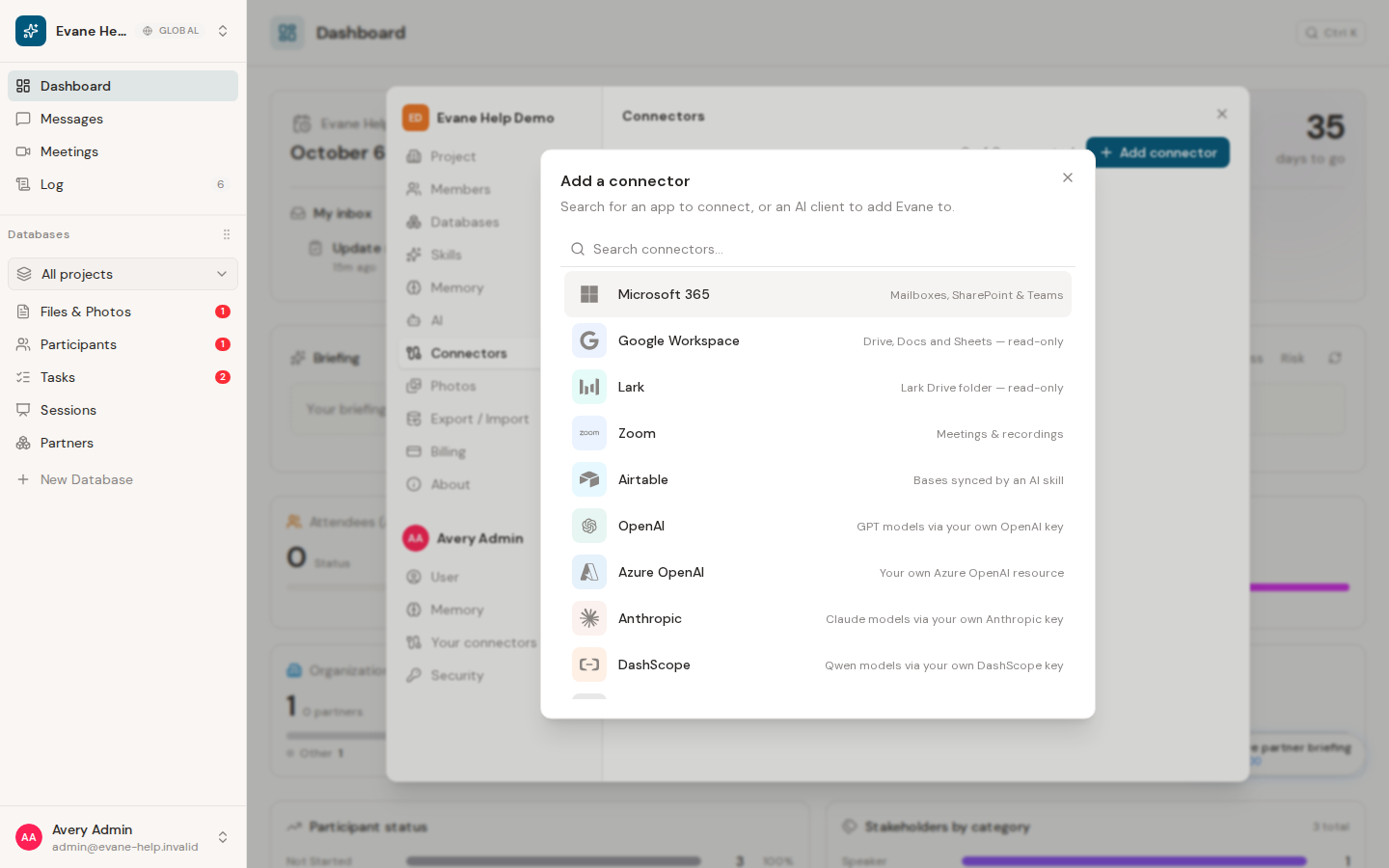
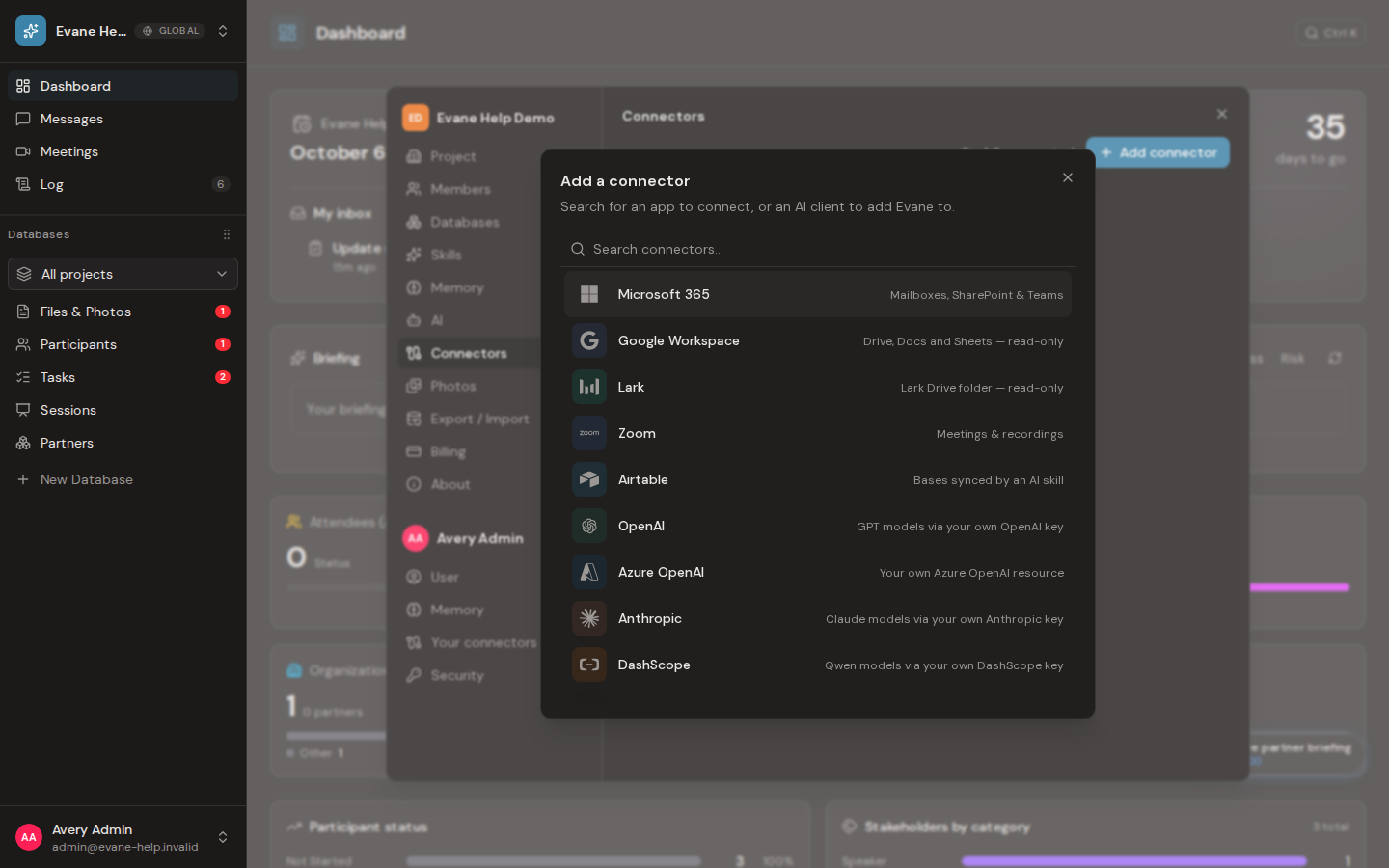
Connection checks
- Open Settings > Connectors and confirm the Microsoft connection is present and active.
- Reconnect when Formist reports expired or insufficient consent.
- Confirm the signed-in Microsoft account can open the selected SharePoint site directly.
- Verify that the intended site, drive, or folder is selected for this space.
Sync checks
Run Sync now once and wait for the run status. Initial sync can take longer than a delta sync because Formist must list and classify files. A file may be skipped when it is unsupported, inaccessible, too large, or cannot be converted for indexing; the skip reason belongs to the file metadata rather than the OAuth connection.
If a file looks synced but is not yet searchable or summarized, check whether Read files on demand is on for that connection (Settings > Connectors, the connection's menu). With it on, sync records each file's name, size, dates, and link only; its content is fetched the first time a member or the AI opens it, which is expected, not a sync failure.
SharePoint remains the source of truth. Renames, moves, deletions, and source metadata changes are reflected by later synchronization. Inside Formist, synchronized files are readable to space members; Microsoft permissions are checked separately when a member opens the original SharePoint page.
A disconnected connection stays listed with a Reconnect button. If it disappears entirely, it was removed, and an Admin may need to create or share a new space connector.
Frequently asked questions
Does a successful Microsoft sign-in guarantee sync will work?
No. A SharePoint connection has two separate parts, Microsoft authorization and Formist synchronization, and a successful OAuth sign-in does not guarantee the selected site and files can actually be synchronized.
Why was one file skipped during sync?
A file can be skipped when it is unsupported, inaccessible, too large, or cannot be converted for indexing; the skip reason belongs to the file's own metadata, not the OAuth connection.
If I rename or move a file in SharePoint, does Formist pick it up?
Yes. SharePoint remains the source of truth, and renames, moves, deletions, and source metadata changes are reflected by later synchronization.
Last verified: