
Troubleshoot file open, download, and delete errors
First identify the file source.
First identify the file source. Files synchronized from SharePoint, Google Drive, or Lark stay source-owned, while uploaded and generated files use Formist-managed storage. Their open and delete rules are intentionally different.
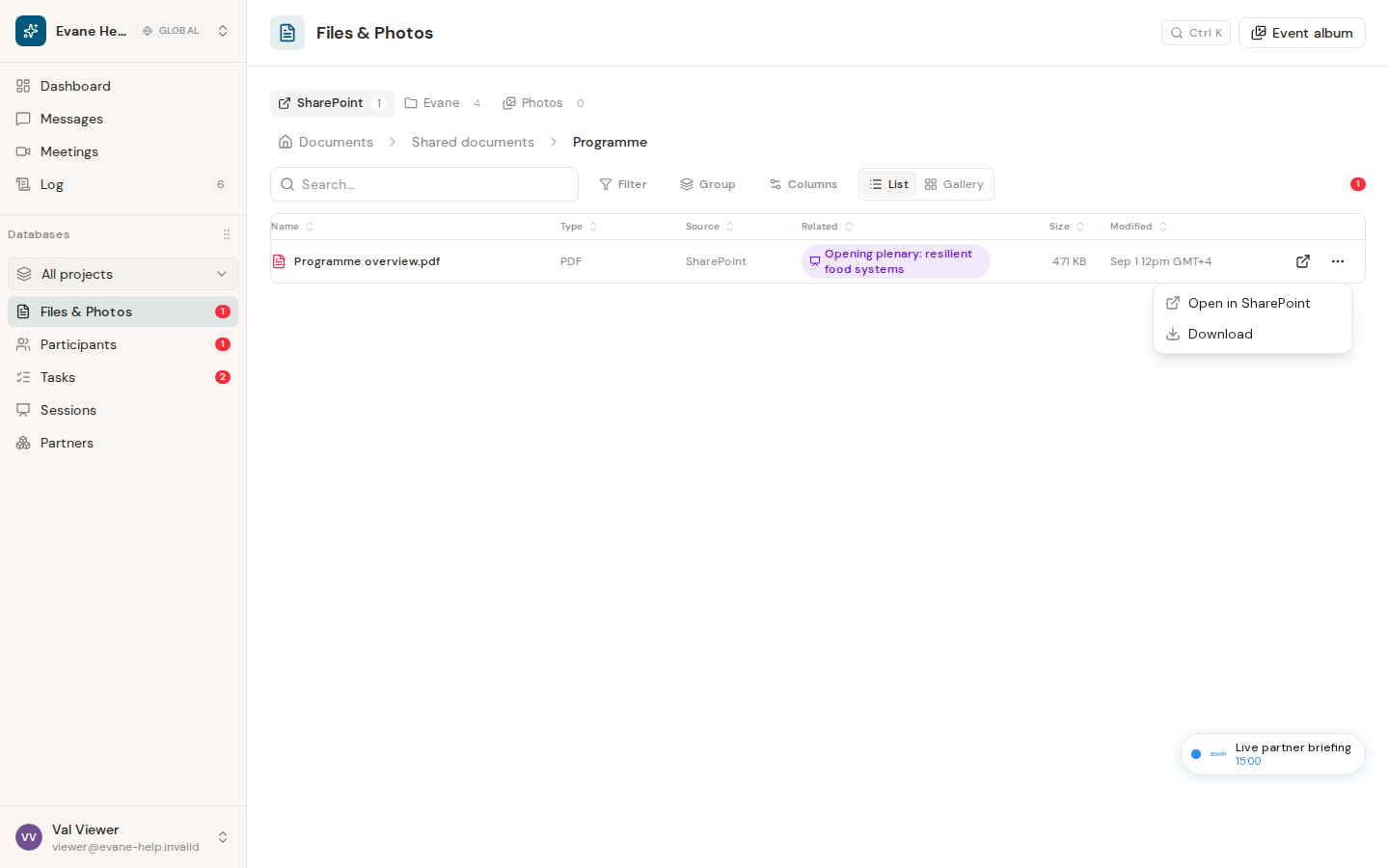
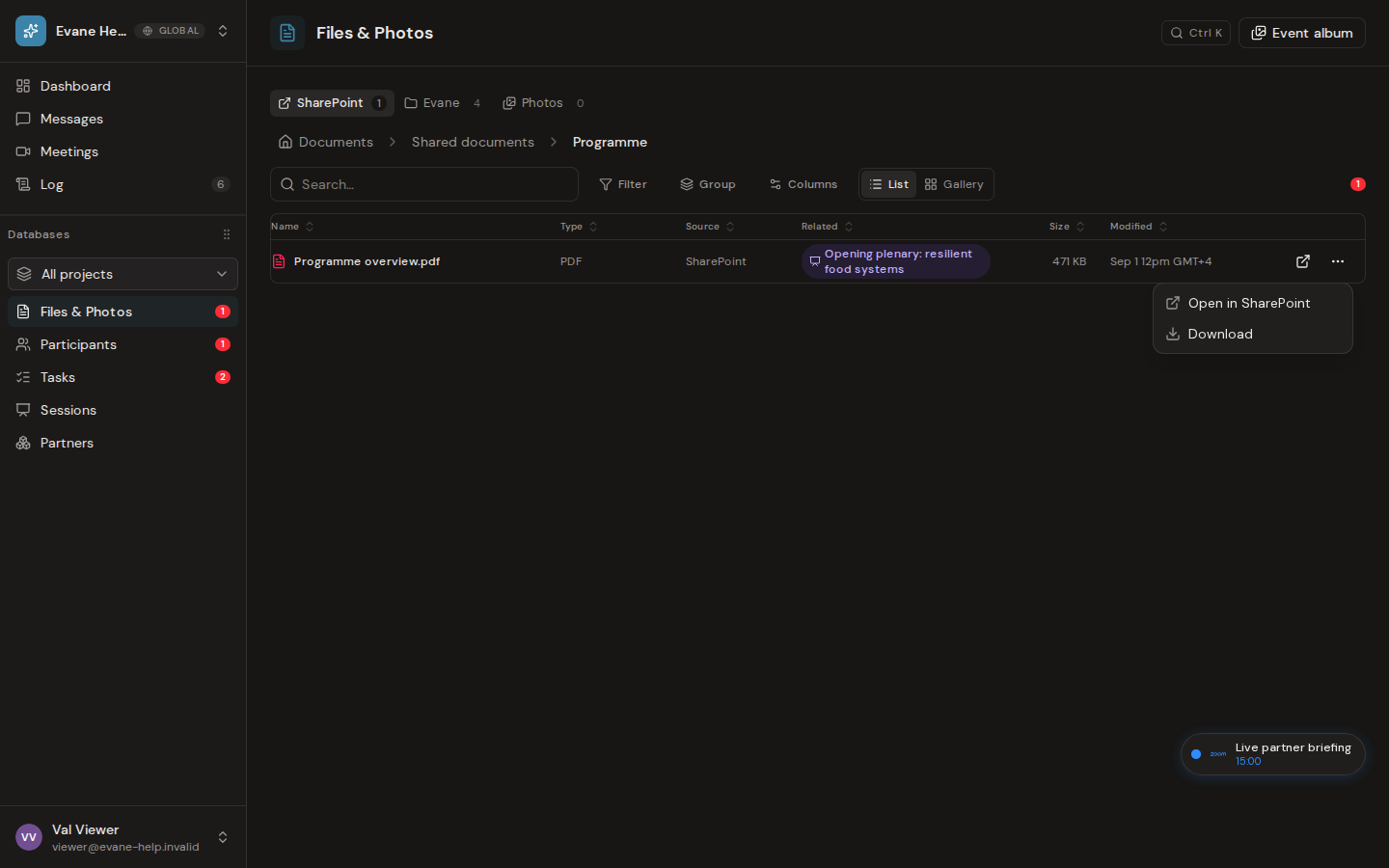
Connected-provider files
- Open uses the available provider URL, and SharePoint, Google Drive, or Lark decides whether the current user may view it.
- Dropbox has no provider URL to open: the shared folder is mounted with Formist's own app credentials, not anyone's personal sign-in, so Open downloads it through Formist instead of checking a source-page permission.
- When a download or open is refused, Formist shows why in a message instead of opening an error page: a source that needs reconnecting (with a Reconnect button to Settings > Connectors), a source that did not answer (try again), a connector that an Admin disconnected (its files stay hidden until it is reconnected), or a file restored from the trash after its connector was removed, whose text stays searchable but whose original can no longer be downloaded.
- A 403 usually means the provider grant or item permission is missing.
- Deleting a link from an entity removes only the Formist association. It does not delete the source item.
- Connected-provider rows cannot be managed as if Formist owns their bytes.
Uploaded or generated files
- Supported text and document formats can open in Formist preview; other formats download.
- A broken download can indicate a missing Blob object or a File record whose storage metadata is incomplete.
- Deleting the File requires the appropriate space permission and moves it to Trash. Its bytes and links remain recoverable for 30 days; an Owner or Admin can purge it permanently.
What to try
Refresh Files to confirm the row still exists, check the source label, then retry the source-appropriate action. If a file was deleted accidentally, an Owner or Admin can open Log > Trash and restore it before the retention period expires. If preview fails but download works, keep the file and report the MIME type. If both fail, provide the File name and ID to an Admin without sharing its private content.
Last verified: