
Schedule tasks on the Gantt
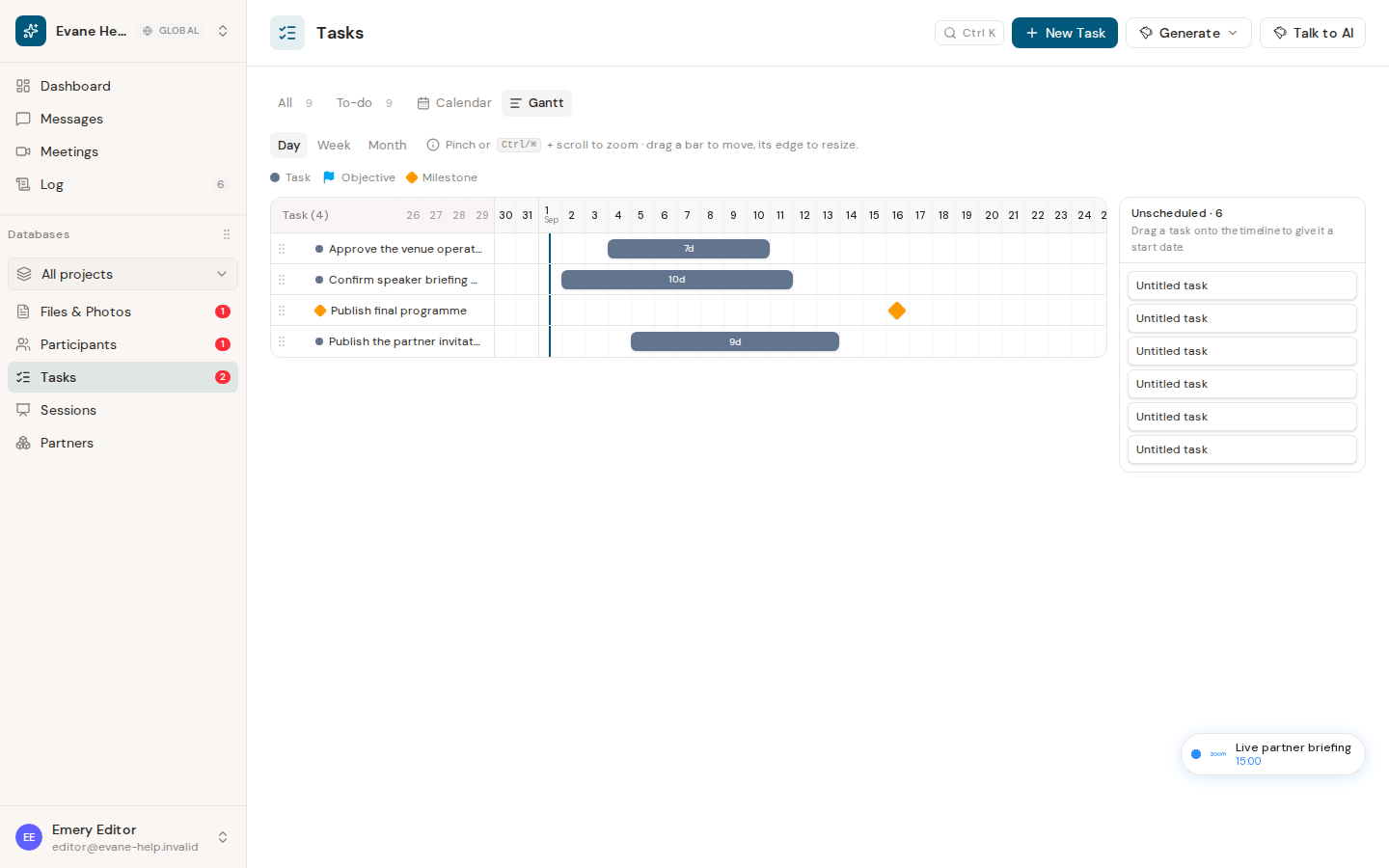
Gantt turns Task dates and hierarchy into a timeline: dragging a bar moves or resizes a Task's dates, while milestones stay single-date markers.
Gantt turns Task dates and hierarchy into a timeline. Moving or resizing a bar writes back to the Task, while milestones remain single-date markers.
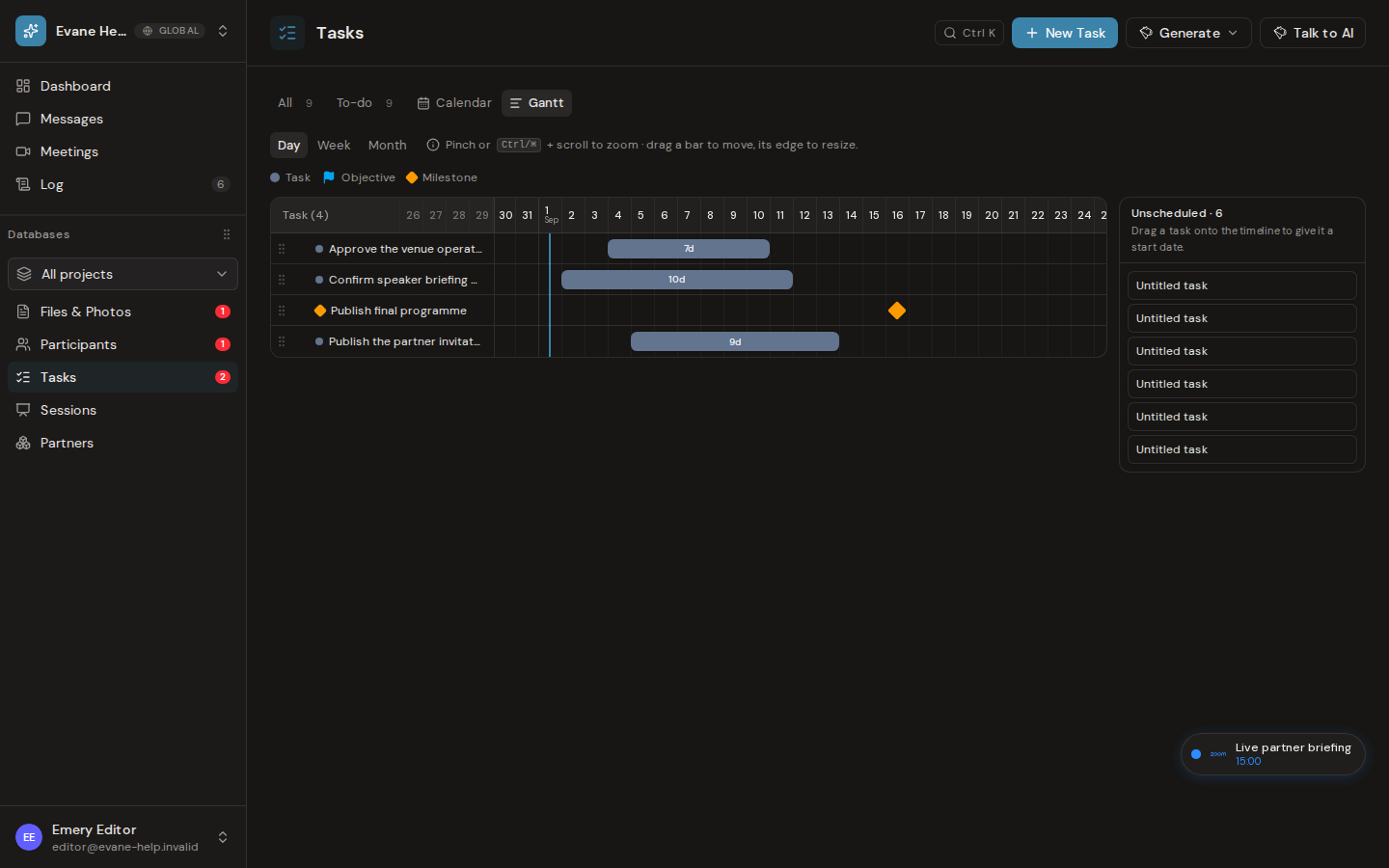
Adjust dates
- Open Tasks > Gantt.
- Drag a bar to move its full date range.
- Drag a bar edge to change only Start or Due.
- Drag an item from Unscheduled onto the timeline to assign the drop day as both Start and Due.
- Select Save to commit all pending date edits, or Discard to revert them.
A one-date marker moves as a single point and has no resize handles. Changes snap to calendar days. Editing requires write access.
Reorder planning rows
Use the row grip to reorder supported top-level sibling rows. Reordering is limited to the same parent level and is stored using each task's position value.
Unsaved-change protection
Dirty records show a highlight and remain in a shared pending buffer. Switching away from Gantt or leaving Tasks opens a Save/Discard guard. Browser refresh or close also triggers the browser's unsaved-change warning.
If a record is missing
Only records with a Start or Due date appear on the timeline; undated records are listed under Unscheduled. Objectives without their own dates may still appear when they contain chartable descendants.
Frequently asked questions
Can I edit a milestone's date on the Gantt?
Yes, drag its diamond marker to a new day to move it. A milestone has a single date rather than a range, so it moves as one point and has no edge handles to resize.
Last verified: