
Use the PMO Weekly Presentation Skill
A Skill hooked to Tasks can build a real PowerPoint deck from the space's Tasks by filling its template with code, not a slide outline.
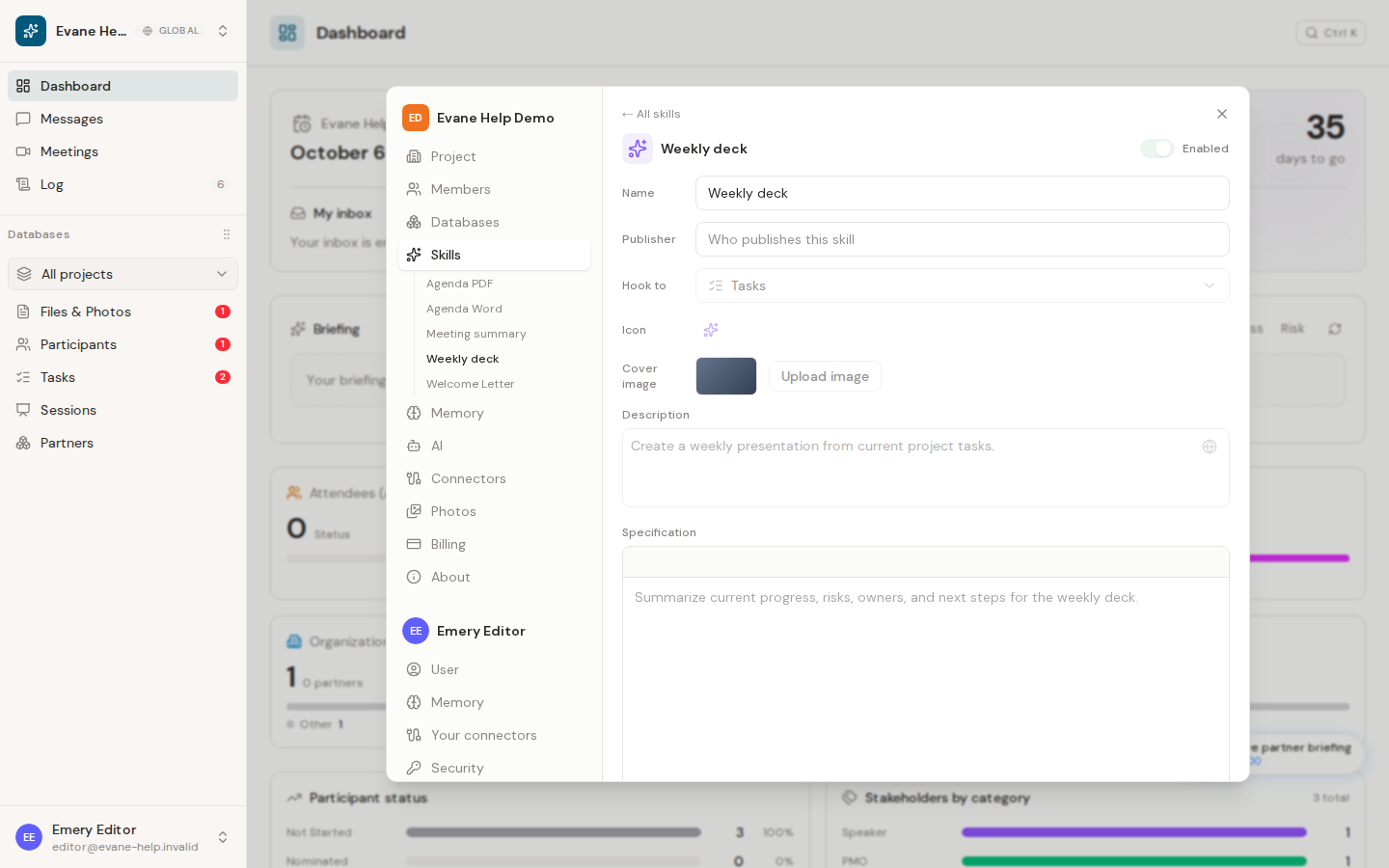
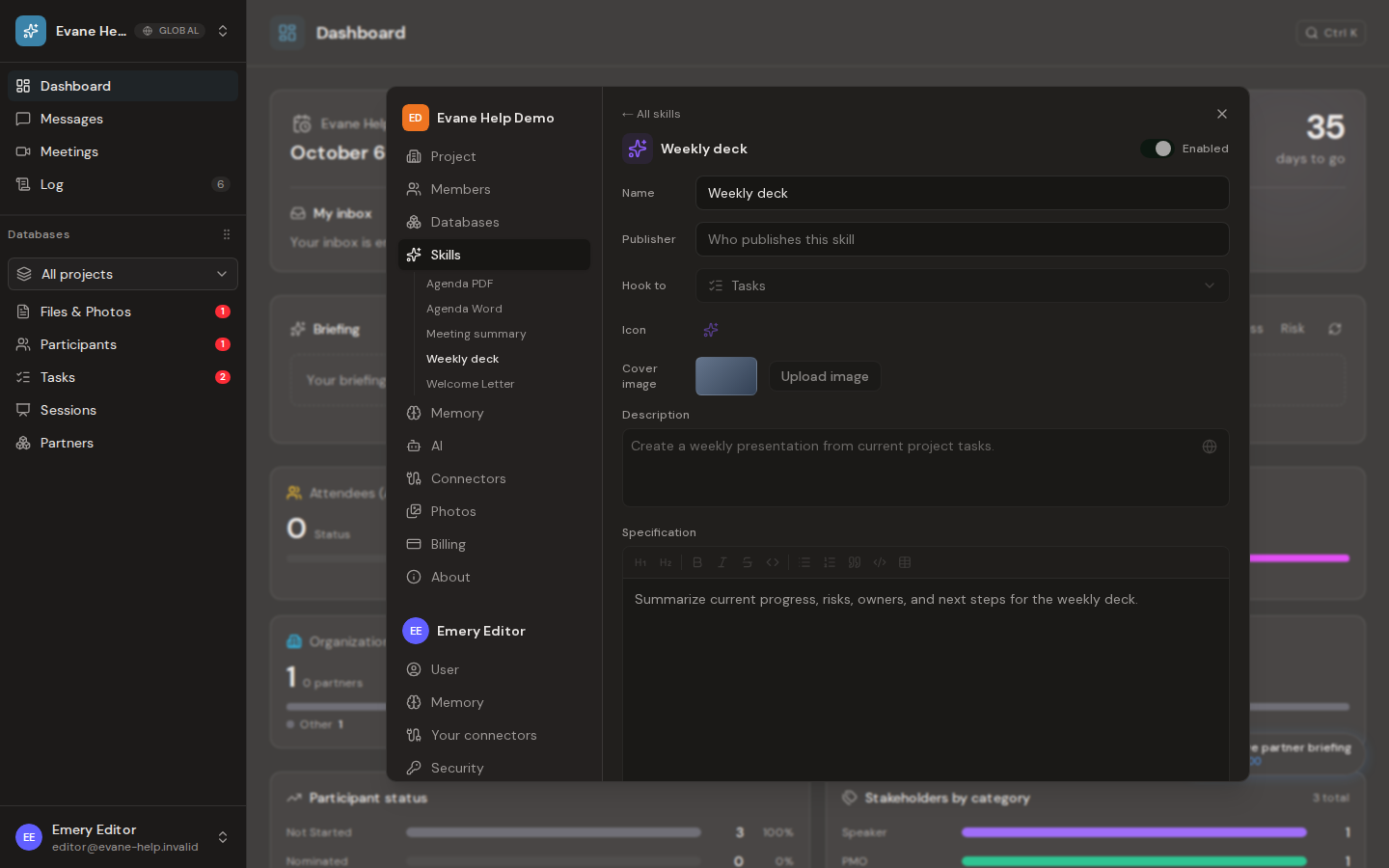
Many spaces keep a Skill hooked to Tasks that builds a weekly status deck: a real PowerPoint file updated from the current space's Tasks, not a slide outline written in prose. What follows describes how that kind of Skill behaves. Your space can rename it, edit its instructions, or replace its template at any time, because the Skill is your space's own data, not a fixed Formist feature.
Generate the deck
- Review Task subjects, owners, status values, positions, and progress notes.
- From Tasks, open Generate and choose the deck Skill.
- Formist opens a chat and runs the Skill.
- Download the returned PPTX, or find it in Files.
What the Skill typically updates
- The cover date and week number, from today's date.
- The recap slide, with an AI-written delivery summary and the current Task list.
- Task rows, grouped and coloured to match the template's own status and stakeholder columns.
- A progress note copied from the Task, left blank only when the Task genuinely has none.
Other slides stay untouched. Long Task subjects are fitted without silently dropping rows.
The Skill checks its own work
Before saving the deck, the Skill checks that the result actually differs from the untouched template, and, if its instructions ask for it, that leftover sample text from the template is gone. A written outline in the chat is never a substitute for this check: only a returned, downloadable file that passes it counts as a generated deck.
Template errors
The Skill needs its own PowerPoint template attached. If Formist reports that the template is unavailable, reattach it in Settings > Skills.
Last verified: