
Create and manage saved views
Saved views let you keep a useful table arrangement without changing the underlying records.
Saved views let you keep a useful table arrangement without changing the underlying records. They are scoped to one entity type and can remember filters, sorting, visible columns, order, and an icon.
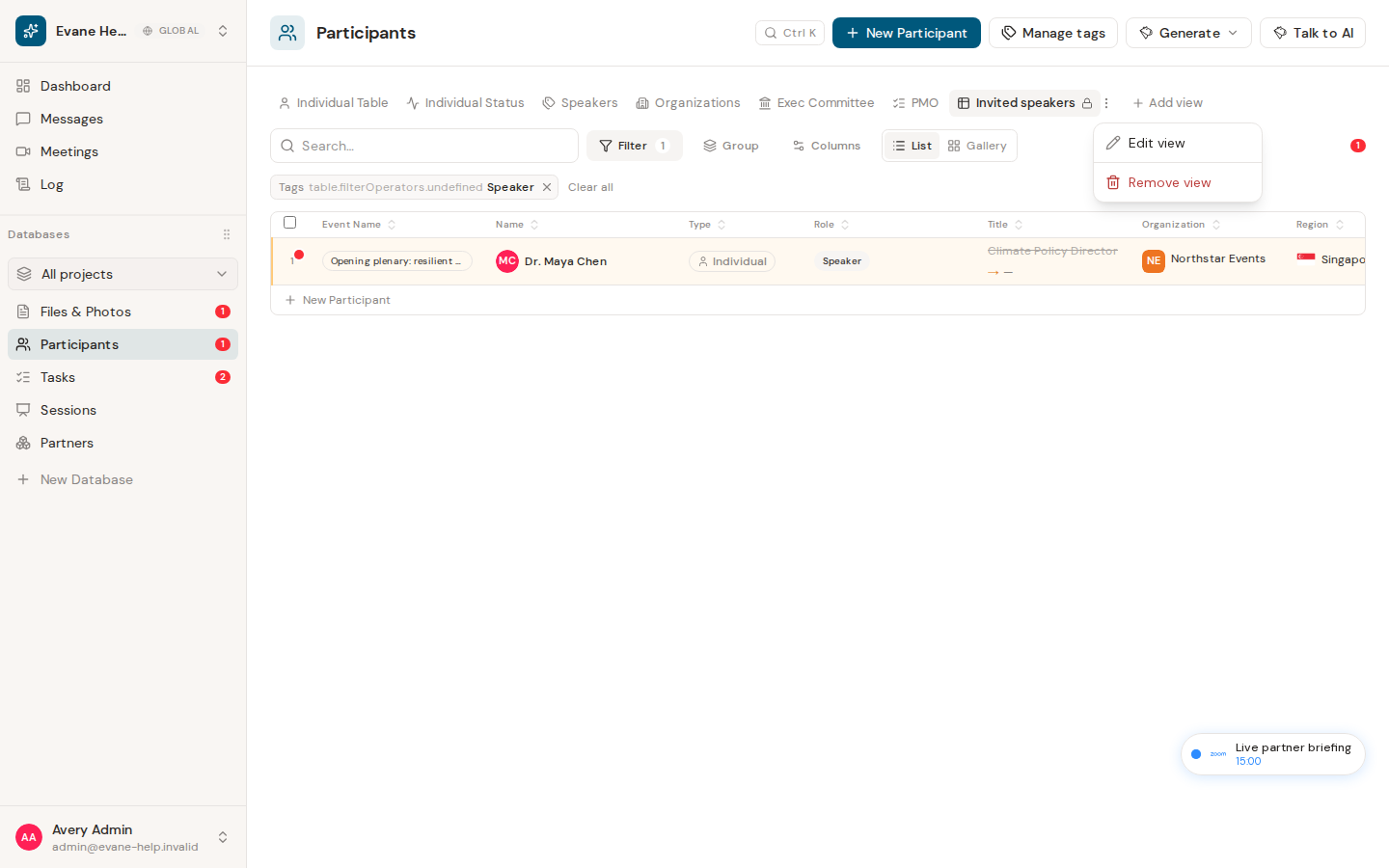
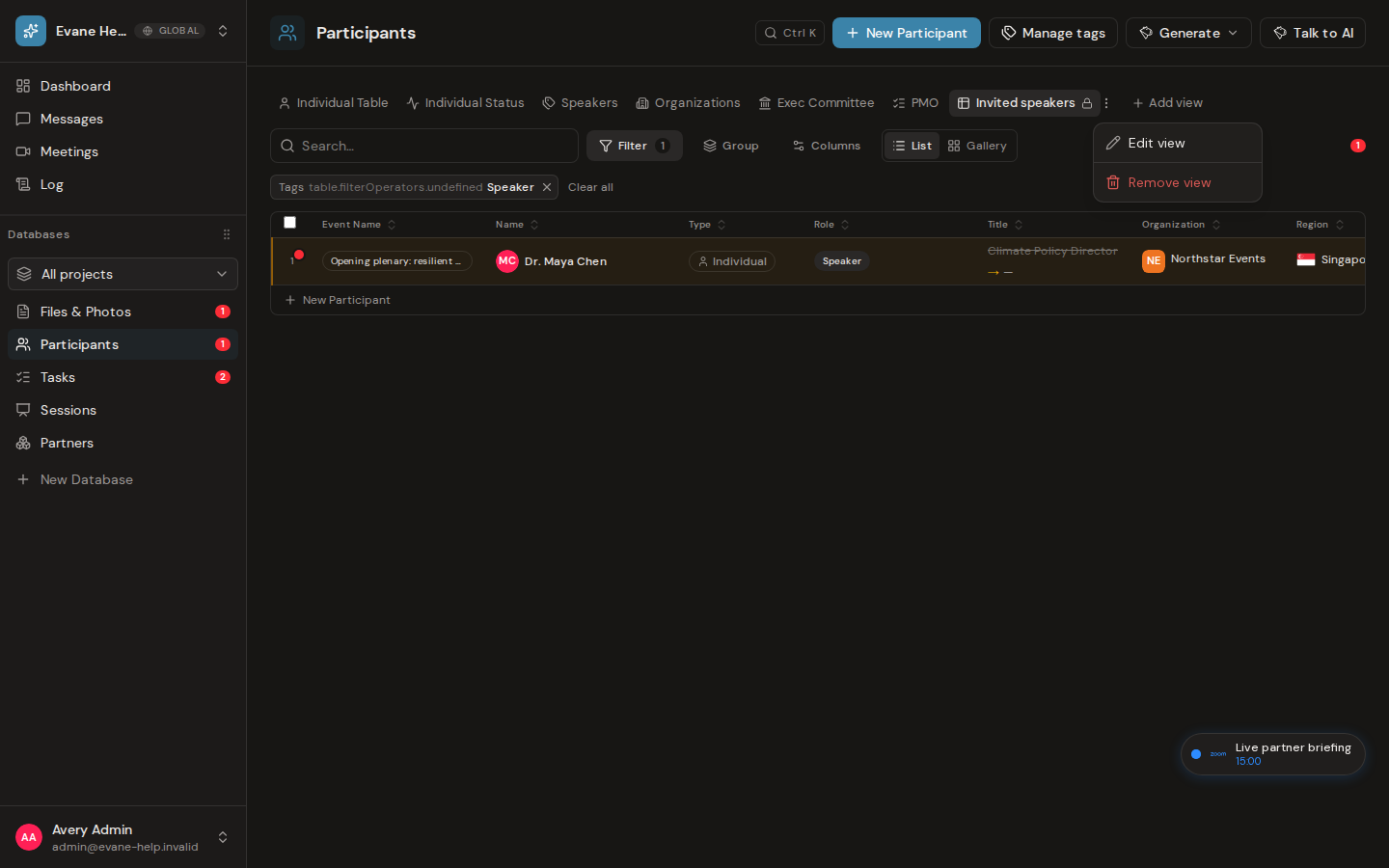
What a saved view stores
Every tab above a table is a saved view, including the defaults a Space starts with (such as All, My tasks, and Gantt on Tasks, or Individuals and Organizations on Participants). A view belongs to one table and stores a name, a view type, filters, visible columns, sort, grouping, an optional icon, and whether it is Public or Private.
The view type decides how the rows are laid out: Table, List, Gallery, Calendar, or Gantt. There is no separate layout switch on the toolbar.
A default view's own filters are part of its definition. They are applied without showing as filter chips and are changed only in the view's settings. Filters you add on top of any view are temporary until you save them into a view.
Add a view
- Open a table that displays view tabs.
- Select Add view.
- Choose the View type first.
- Enter a name and optionally choose an icon.
- Choose Public for a Space view or Private for a view visible only to you and Space Admins.
- Configure visible columns and filters.
- Complete the settings for the chosen type: the start and end date columns for Gantt, the date column, an optional end column, and the default range (Month, Week, 3 days, or Day) for Calendar, the cover column for Gallery, or the title and detail columns for List.
- Save, then select the new tab to apply it.
Edit, move, or remove a view
- Open the three-dot menu next to a view.
- Choose Edit view to change its type, name, icon, filters, or columns.
- Use Move left or Move right to reorder tabs.
- Choose Remove view to delete it.
A default view can be edited, renamed, moved, or removed like any other. Formist keeps at least one view per table, so the last remaining view cannot be removed. Some tabs are managed by Formist, such as the drive tabs in Files & Photos; they cannot be edited or removed, and their menu only offers actions for the thing they show.
Saved views are saved by the Formist service and reload with the table. The selected view is part of the page link, so sharing the link opens the same view.
Permissions and visibility
Every new view records its creator. Space members can see Public views; a Private view is visible to its creator and Space Owners or Admins. A lock icon marks Private tabs. Creating or changing a view requires write access, and only its creator or a Space Owner or Admin can change its visibility.
If a view does not save
Formist removes a failed create and shows an error. Update or delete failures also show an error, and a refused delete puts the tab back. Reload the page to recover the saved state before trying again.
If the same view was also changed in another tab, Formist merges the two edits silently when they touched different settings. When they touched the same setting, a toast asks you to Reload (keep the other tab's result) or Overwrite (apply your own change on top of it) instead of failing outright.
Frequently asked questions
Does deleting a saved view delete the underlying records?
No. A saved view only stores a reusable filter, sort, and column configuration. Removing it never changes or deletes the records it was built on.
Last verified: