
Search and browse the file library
The Files page combines a folder browser with space file search.
The Files page combines a folder browser with space file search. Use the folder path when you know where a document belongs; use search when you know part of its name or content.
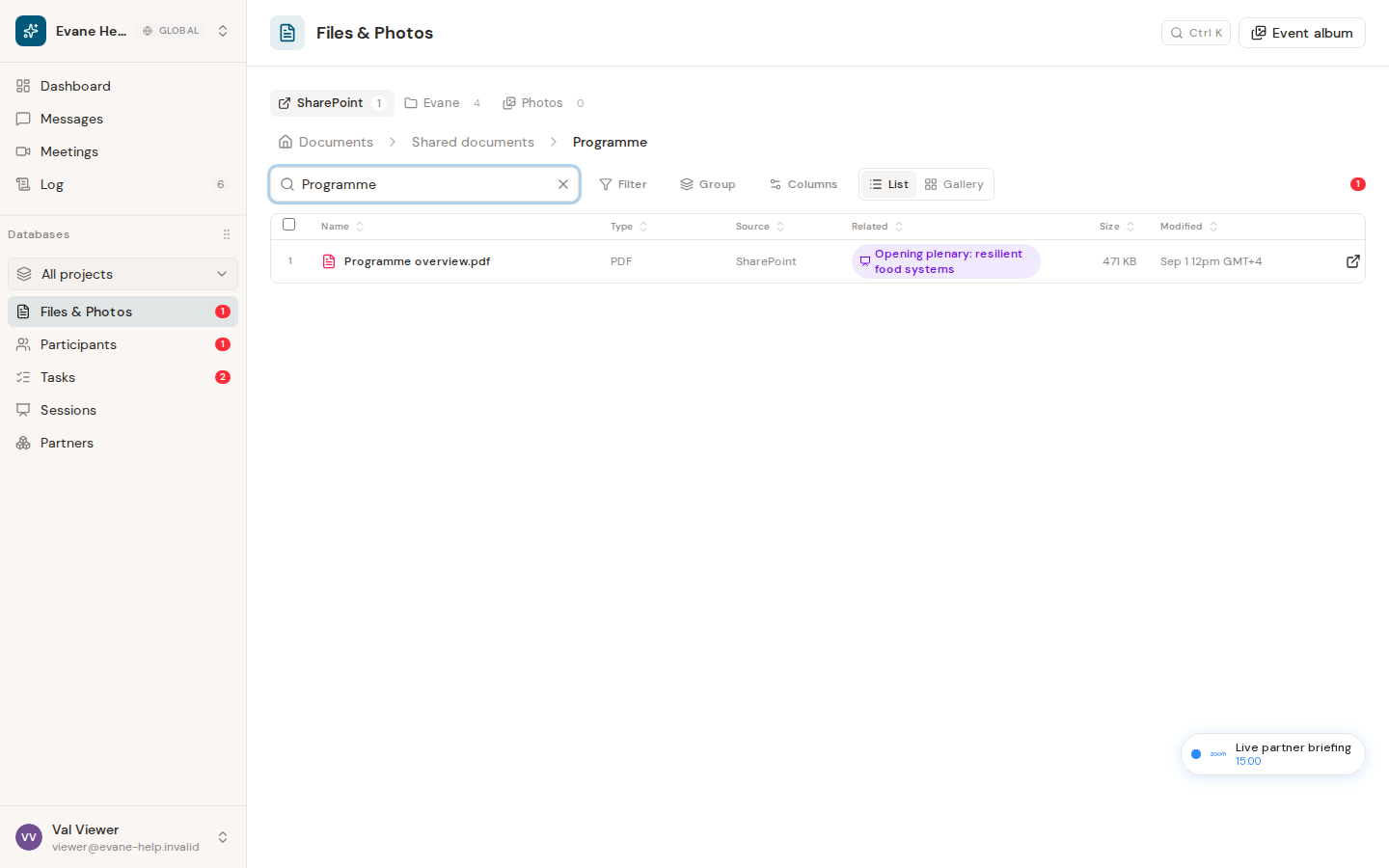
Browse folders
Select a folder row to enter it and use the breadcrumb to move back through the hierarchy. Folders can hold files or exist on their own: an empty folder you created stays in the library until you rename, move, or delete it.
Formist files and connected provider drives are separated visually. Drive tabs identify available SharePoint, Google Drive, Lark, or Dropbox sources, while source badges distinguish uploaded, linked, and AI-generated files.
Search the space
Enter a name or phrase in the Files search field. Results are limited to the active space. Space membership is the read boundary inside Formist, so space members search the same indexed space corpus, including synchronized provider files. Opening an original provider URL is separate, and that provider can still refuse source-page access for an individual account.
Clear the query to return to folder browsing. If search returns no result for a known upload, confirm that processing has completed and check its indexing status. If connected documents are missing, review the space connector scope, last sync, and any reported skip reasons.
Attachments of a Skill installed from the Skill Library are not listed in Files and never appear in search results; the assistant uses them when it runs that Skill.
Last verified: